Moth Chat
Moth DocsApps
Moth Chat is the app for chatting with any model and making images, video and music on one balance, with your chats kept in your browser and who you are removed from every request.
Open Moth Chat. You can start without a wallet, on thirty free prompts on the free models, up to ten of which can make an image or a song. The trial is given once, and video needs a wallet. Connecting a wallet signs you in with one signature and opens every model on your balance.
Start a chat
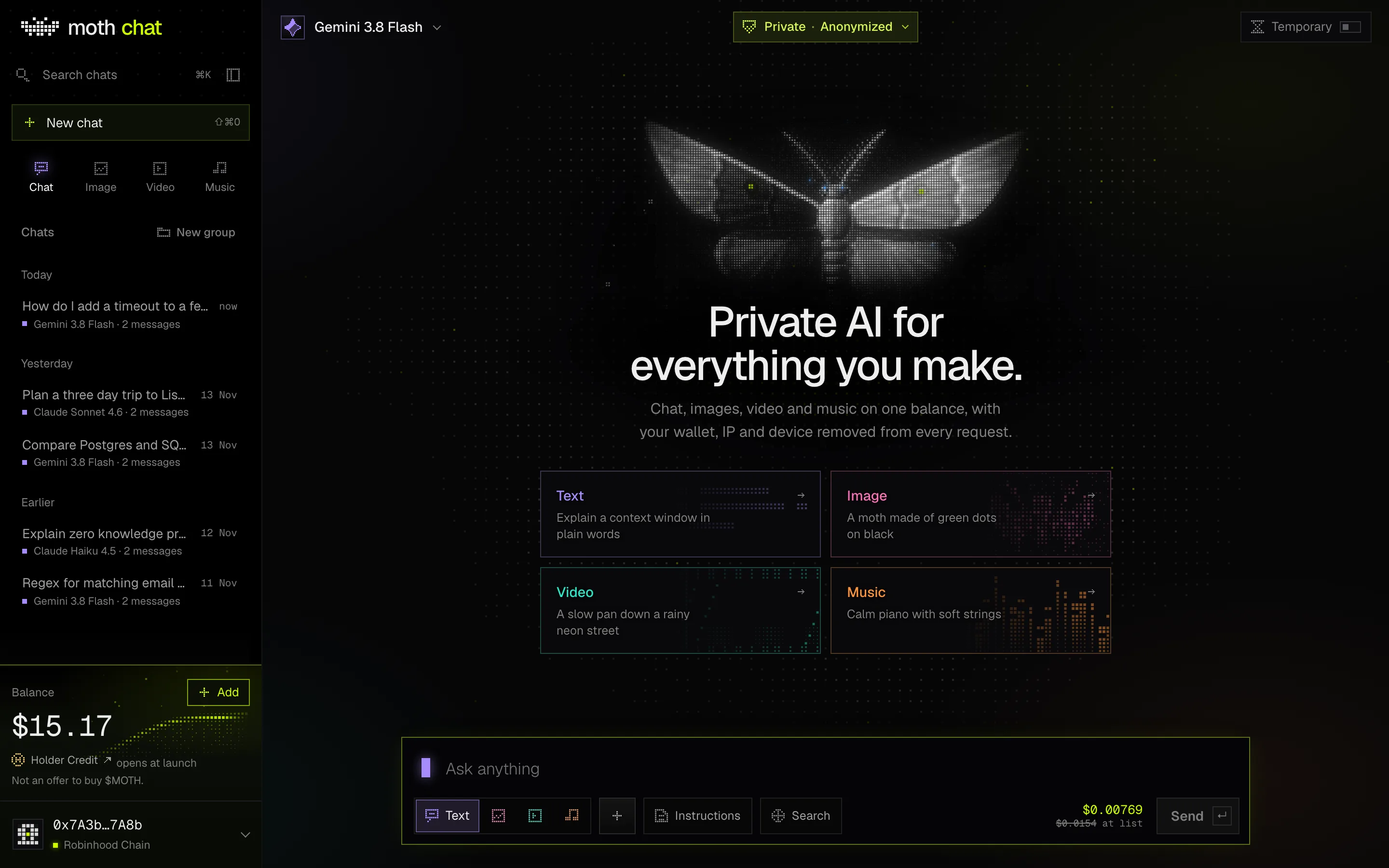
Open a new chat
Press New chat at the top of the panel. The box at the foot of the screen takes the message.
Choose what to make
The tabs on the box are Text, Image, Video and Music. Text chats with a model, and the other three make media inside the chat.
Write and send
Type the message and press Send. The price of the send shows beside the button, with the list price where the model has one. The plus adds images or text files, and Search lets the reply search the web on the models that can.
Read the reply
The reply streams in. Under it you can copy it, regenerate it, continue one that stopped at the length limit, and open the privacy record of the request.
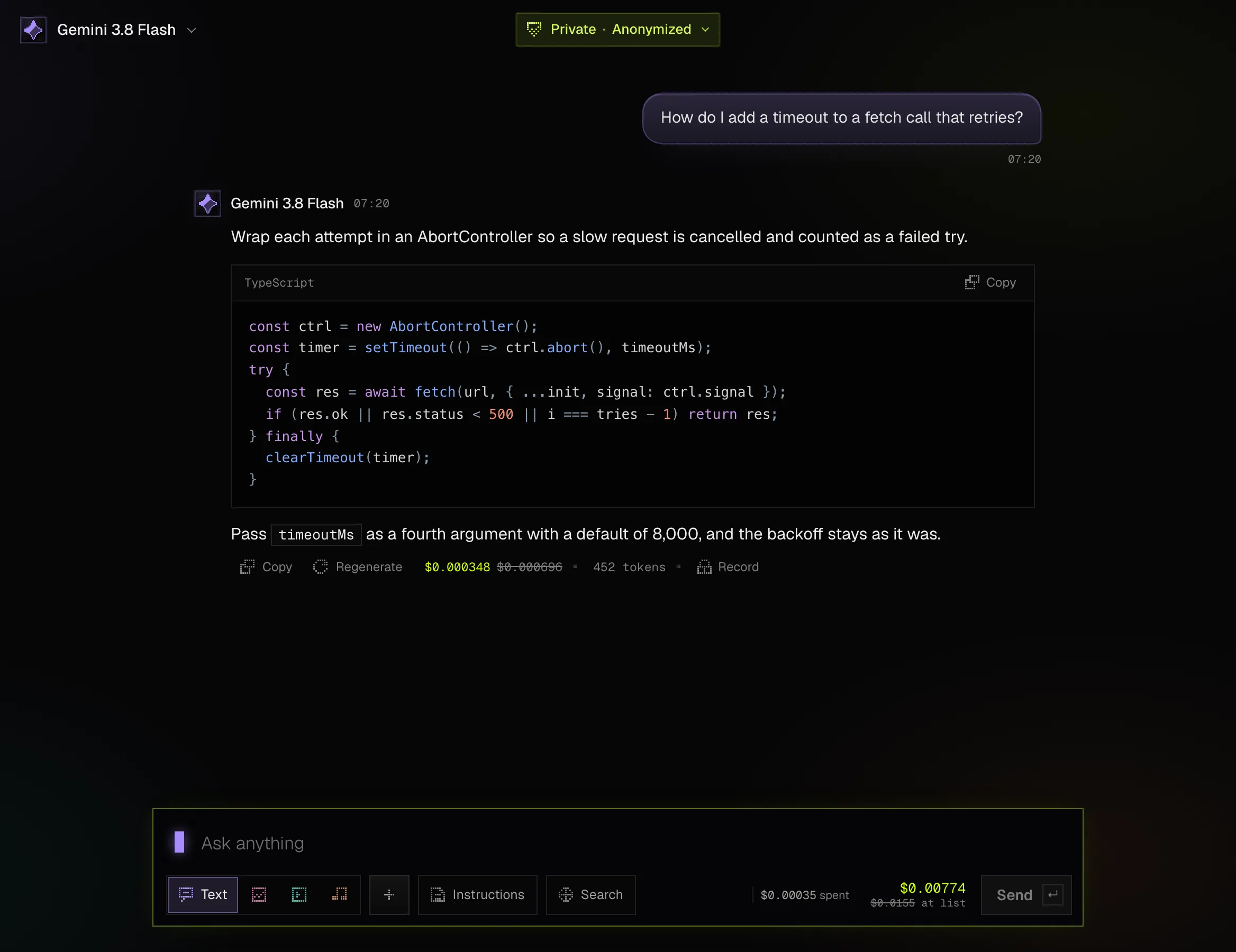
A message can carry up to four images, and text files of up to 200 KB each. PDFs cannot be read yet, so paste the text or attach it as a text file. Instructions are sent with every message, and you can set them for one chat, for a group of chats or for every chat.
Make a new chat temporary before its first message with the Temporary switch. A temporary chat and what you make in it are erased when you close Moth Chat, and it is never backed up.
The panel lists your chats as Pinned, your groups and the rest by day. A chat's menu renames, pins, moves, exports or deletes it, and Search chats reads the titles and the words inside every chat in this browser.
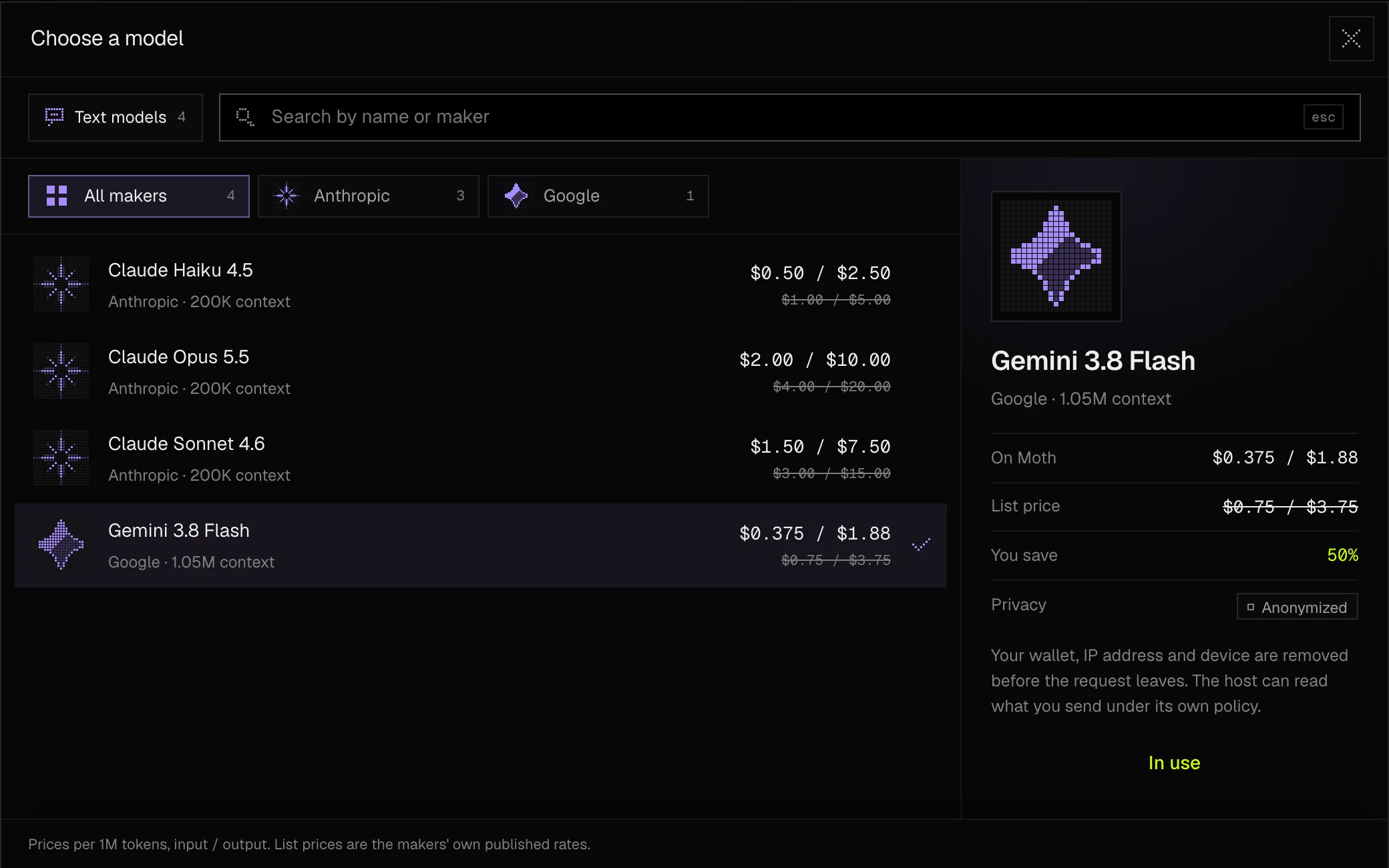
Pick a model
The model's name at the top of the chat opens Choose a model. Makers stand down the left with a count each, the search reads names and makers, and each model's row shows its privacy mode, a line on what it is and its price over its list price. In Settings, under Replies, you set the model new chats start with, which is Moth's pick until you choose one.
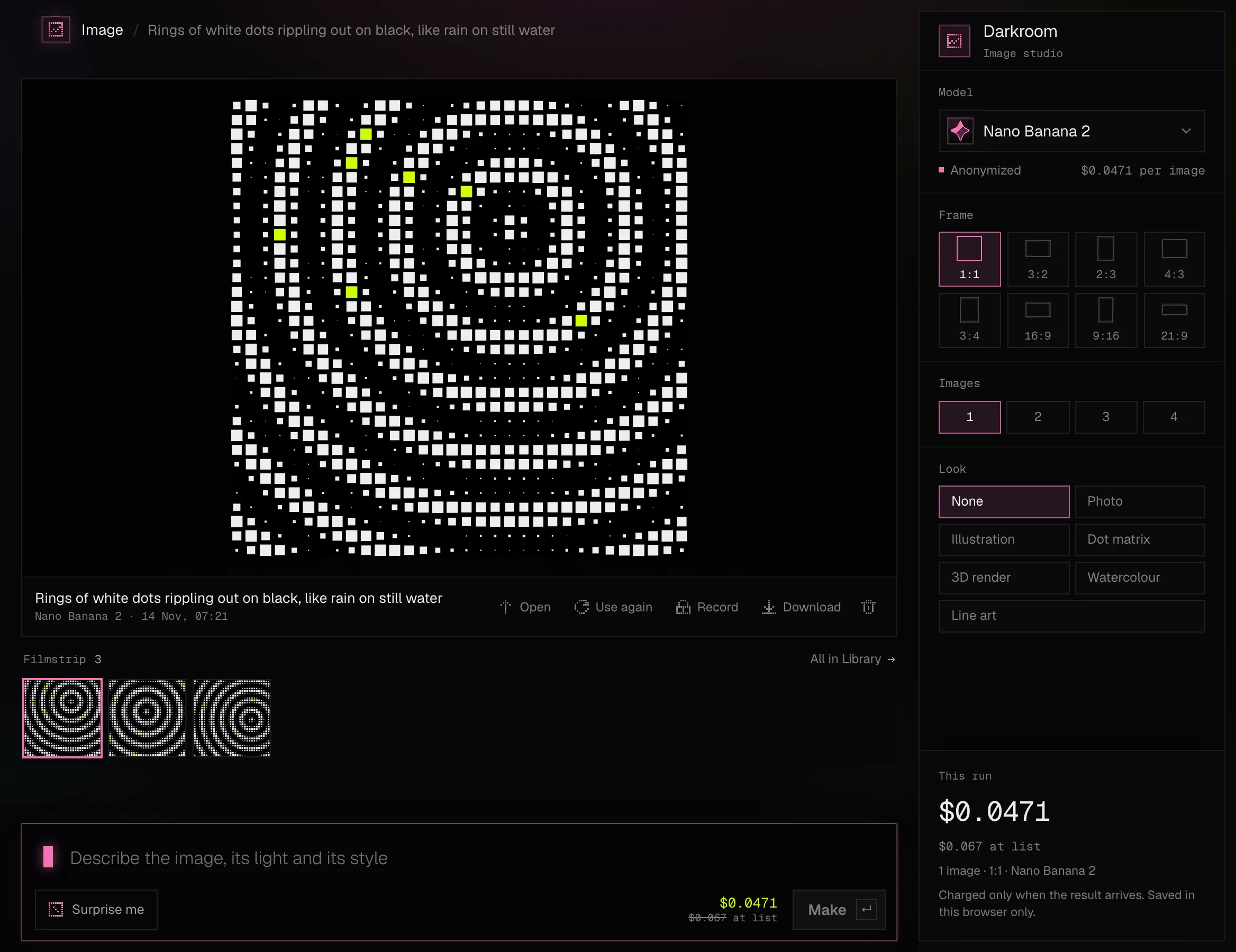
The studios
Image, Video and Music in the panel open the three studios, each a full page for one kind. A studio has its model and settings at the side, a few ideas to start from, Surprise me, and the price of the run against list before you make it. A run is charged only when the result arrives.
The Library
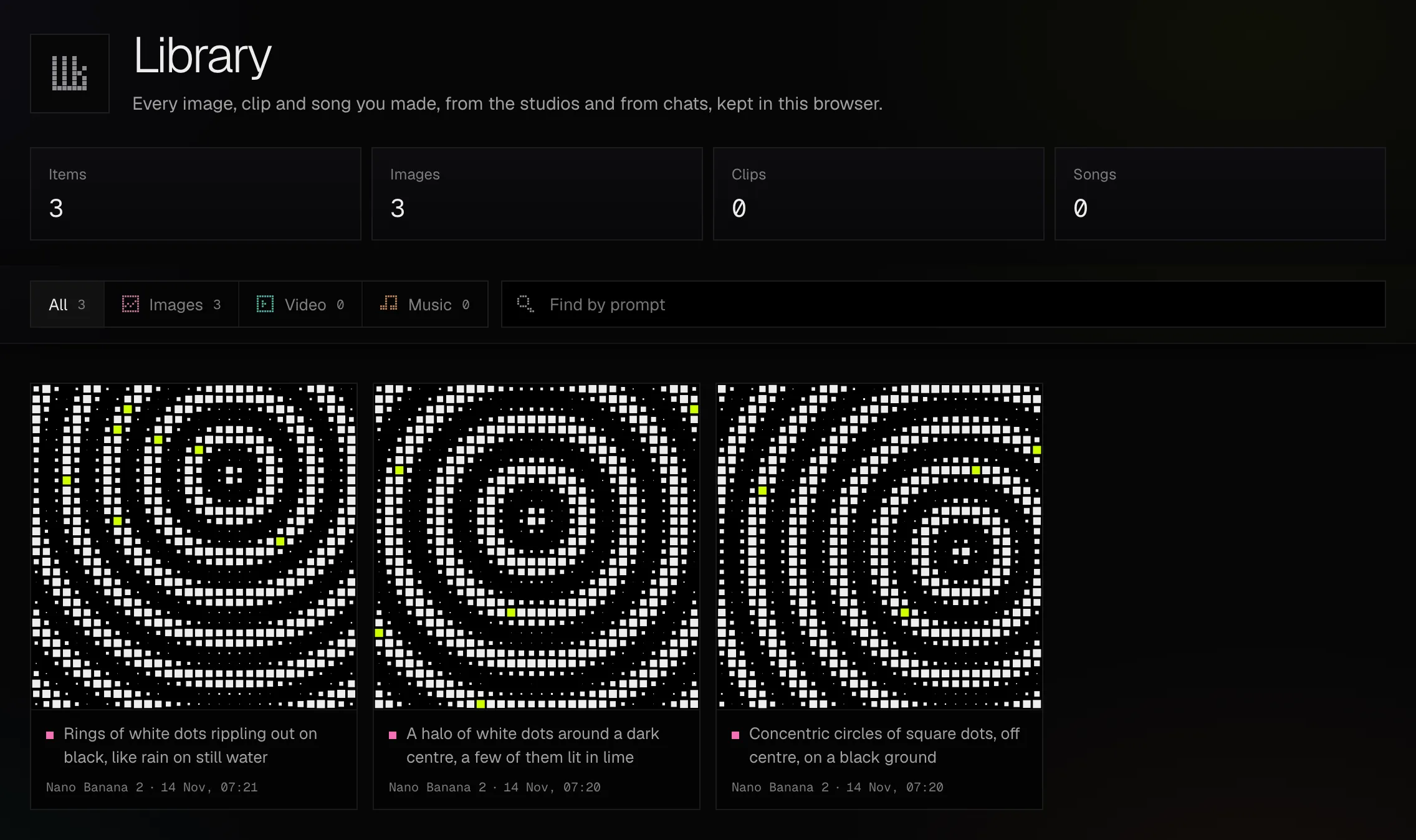
The Library keeps every image, clip and song you made, in the studios or in a chat. Filter it by kind or find an item by its prompt, then open, download or delete it, see its privacy record, or send its prompt back to its studio. Everything in it is stored in this browser.
The privacy menu and the privacy log
The badge at the top of a chat reads Private and the mode the chat runs in. Pressing it opens the privacy menu with the two modes. Anonymized, which every model runs in today, removes your wallet, IP address and device before the request leaves. Sealed is marked coming soon. Picking a mode narrows the model list to the models of that mode, as Anonymized and Sealed explains.
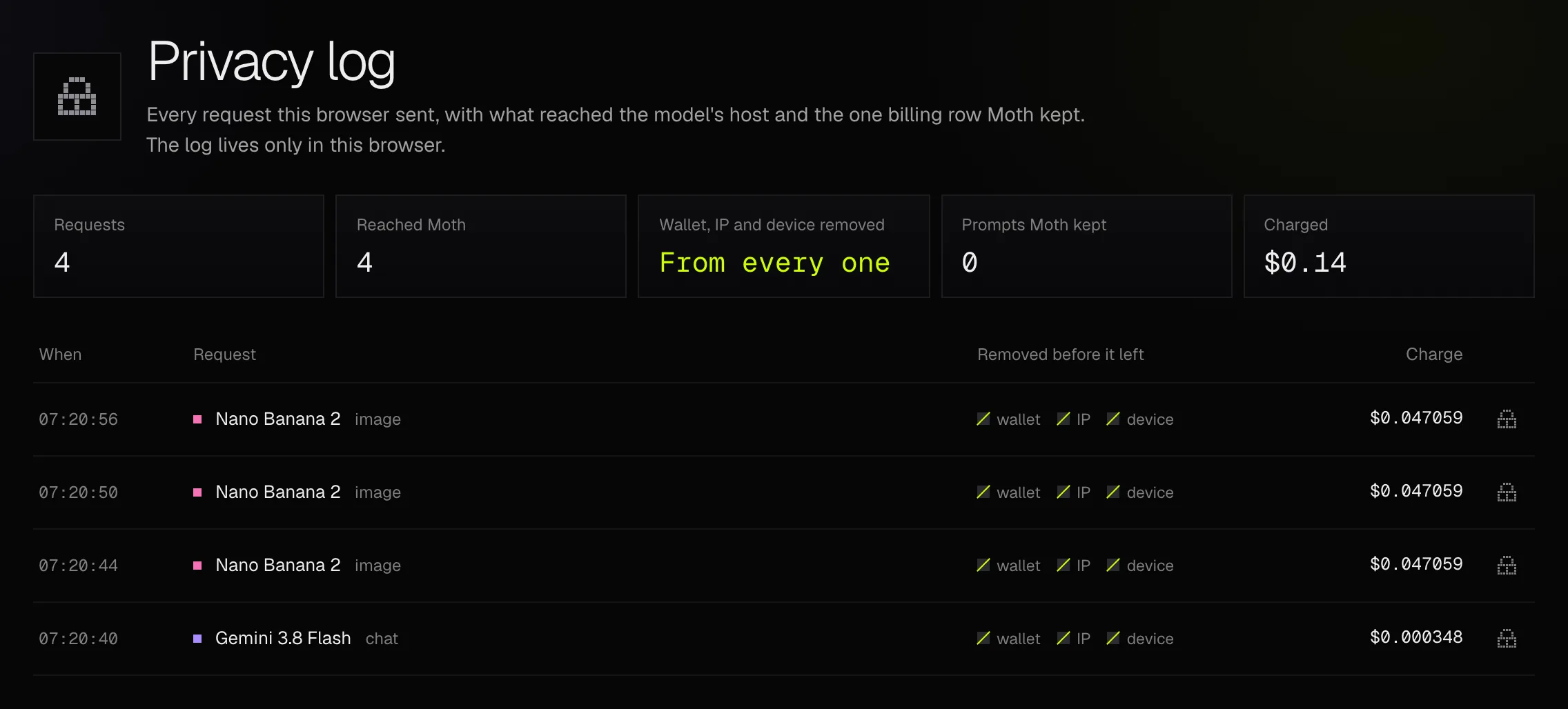
The Privacy log, in the account menu, lists every request this browser sent, with what was removed before it left and what it was charged. A row's privacy record follows the request's route, from what left the browser and what the API removed to what the host saw and the one billing row Moth kept. The log lives only in this browser.
The account area
The foot of the panel shows your balance, and the account row under it opens a menu with Account, Settings, Usage, the Library, History, the Privacy log, Backup and Moth Console. The Account page shows your address, the balance and how long it lasts, your spend and requests, when you use Moth and your latest calls. Add credits and Redeem a code open Moth Console, where credit is added.
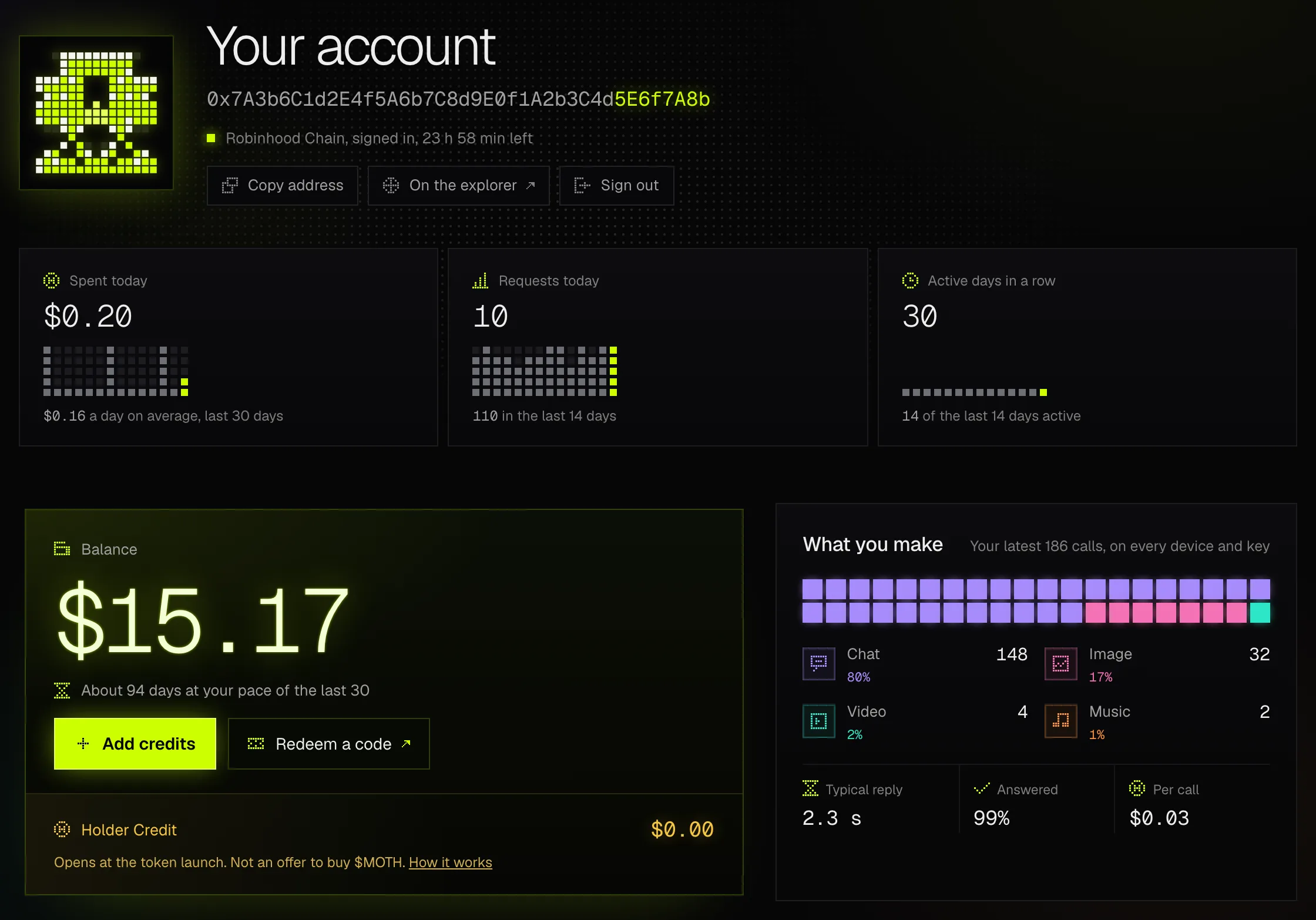
The Account page also shows Holder Credit at $0.00. It opens at the token launch, and it is not an offer to buy $MOTH.
What stays in the browser
- Chats, groups, instructions and settings are saved in this browser, and so are the images, clips and songs in the Library and the records in the Privacy log.
- Moth keeps no copy of what you send to a model or of what comes back. It keeps one billing row for each request, with the model, the counts and the cost.
- History lists every chat and file in this browser, exports them as a file and wipes them. Clearing the browser's data removes them too, and without a backup there is no other copy.
Backup
Backup is off until you turn it on, in Settings under Backup or from the account menu. Your browser seals each backup before it leaves, and Moth keeps only the sealed copy, which your recovery code or a passkey opens. Moth cannot read it and cannot reset the code, so keep the code somewhere safe.
- A backup keeps chats, groups, instructions and settings.
- Images, clips and songs stay in this browser, and temporary chats are never backed up.
- It runs by itself a few seconds after a chat changes, and brings in what your other devices changed.
- On another device, choose Restore a backup and use the passkey or the recovery code. What is already in that browser stays.
- Turn off backup deletes the copy Moth keeps and leaves your chats in this browser.