Moth Console at a glance
Moth DocsApps
Moth Console is where you see your balance, make keys, read your usage and try every model, signed in with the same wallet that pays for your calls.
Open Moth Console in any browser. Models, each model's own page and Compare are open to everyone, and every other page asks you to sign in first.
Sign in with a wallet
Pick your wallet
The sign-in card lists the wallets this browser has, and a QR code for a wallet on your phone. A browser with no wallet says so and points to where to get one, and on a phone you can open the page inside your wallet app's browser.
Approve the connection
Your wallet asks whether the Console may see your address. Moth offers to add Robinhood Chain to a wallet that doesn't have it yet.
Sign the message
One signature signs you in. It sends no transaction and costs nothing, and there is no email or password to set.

The wallet you sign in with is your account for the Console, Moth Chat and the API alike, so all three draw on one balance. Settings shows when the sign-in ends, and Sign out is in the account menu at the foot of the panel.
The side panel
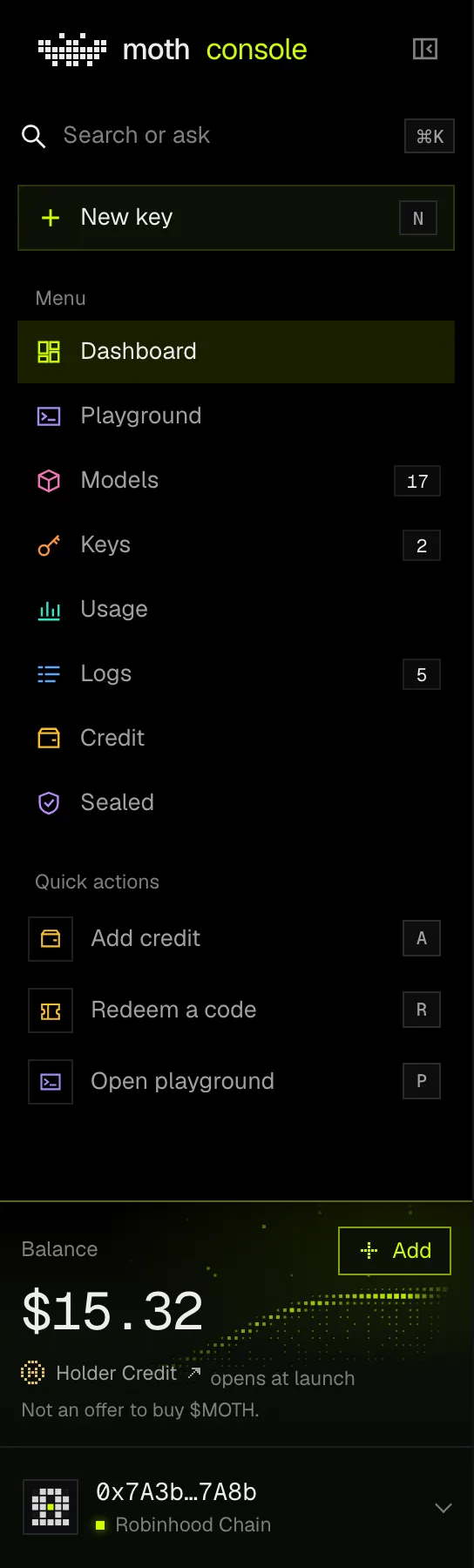
The panel at the left leads everywhere. At its top are the search and New key. Under them is the menu of places, each in its own colour, with the number of models, your working keys and today's calls beside Models, Keys and Logs. Then come three quick actions, and at the foot your balance and the account menu, which holds Settings, the docs and Moth Chat.
Drag the panel's right edge to fold it to a rail of icons, and drag it back to open it. A double click on the edge does the same, and so does the button beside the name. A narrower window folds the panel by itself, and a phone gets a bar at the foot of the screen with Dashboard, Models, Playground, Keys and More.
Shortcuts
NOpens New key on the API keys pageAOpens Add credit on the Credit pageROpens Redeem a code on the Credit pagePOpens the PlaygroundCmd K or Ctrl KOpens the search, which finds places, models, your keys and actions/Opens the search too, or the page's own search box on ModelsThe letters work from any page of the Console, except while you are typing in a field. A question typed into the search can also be sent to a model, which opens the Playground and runs it there once.
What each page is for
Ranges and times
Dashboard, Usage and Logs carry a range in their title row, 24h, 7d or 30d. The choice is kept in this browser and follows you between the three pages. Every dated time in the Console is in UTC and says so.
Settings
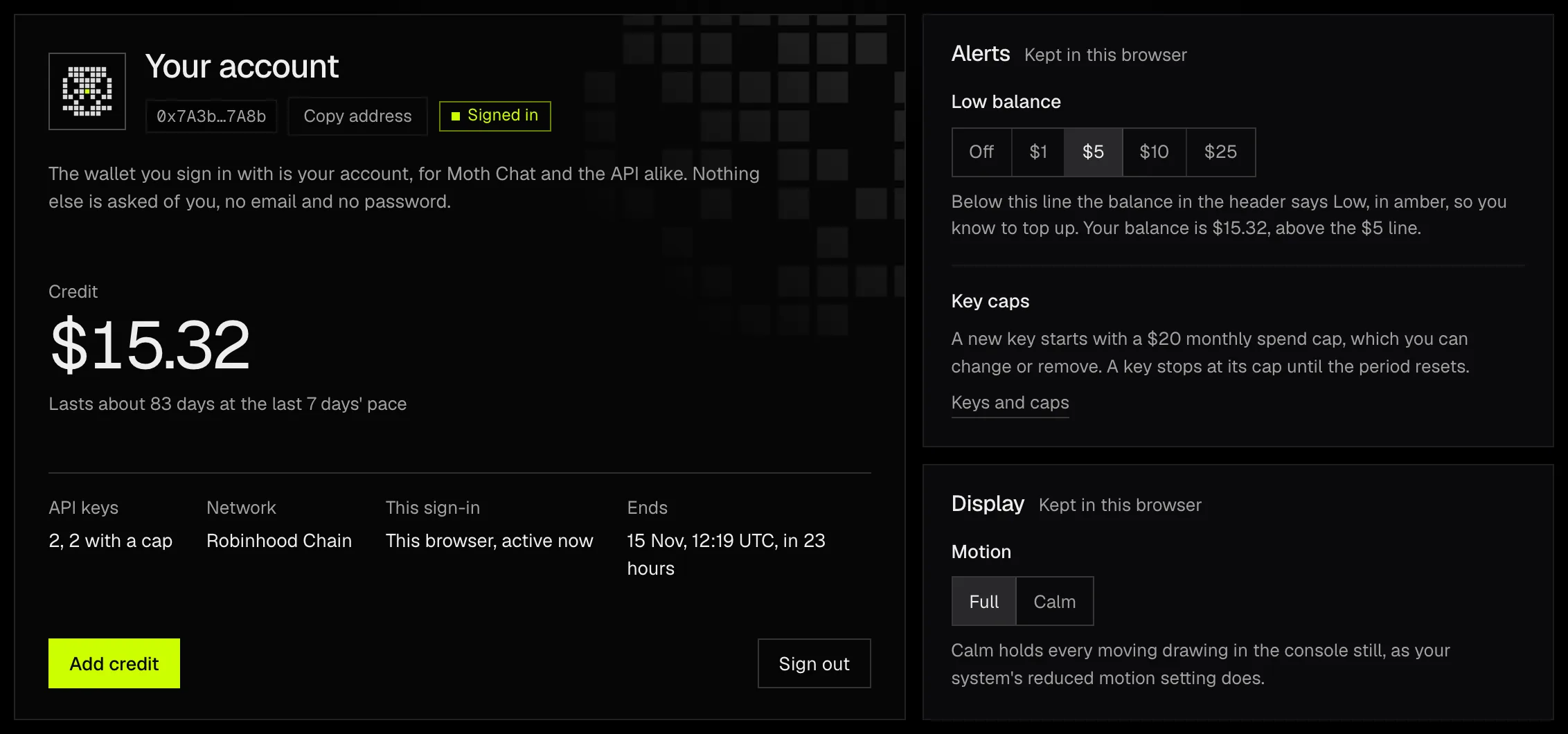
Settings opens from the account menu. Its first card is the account itself, with the balance, your keys and when the sign-in ends. The low-balance line and Calm, which holds every moving drawing still, are kept in this browser. The Privacy card lists what Moth keeps for a request, what it never keeps and what is removed before the model's host sees it.
Approving an app opens later. The Connected apps card has a field for a short code from an app such as Moth Code. The field is closed today and reads Opens with Moth Code, and until then apps connect with an API key.