Get started in Moth Chat
Moth DocsTutorials
Try Moth Chat on free prompts with no wallet, then connect a wallet and add credit to use every model.
Open Moth Chat in any browser. There is nothing to install and no form to fill in.
Try it free
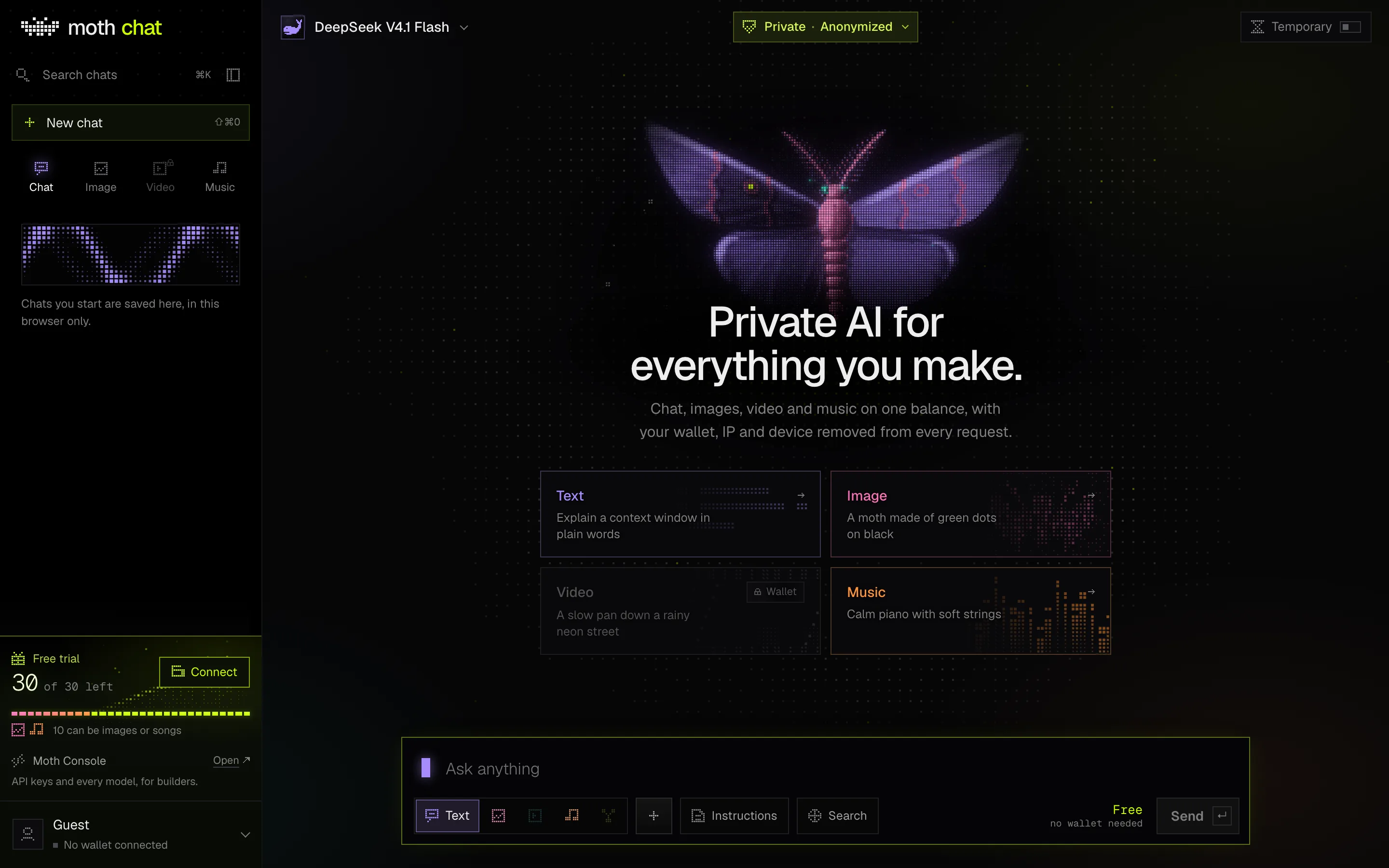
A browser with no wallet gets a free trial of 30 prompts on the free models. Up to 10 of them can make an image or a song, one image per prompt. The trial is given once and does not renew, and video needs a wallet.
Write a message
Type into the box at the foot of the screen and press Send. Beside the button it reads Free, no wallet needed.
Watch the count
The Free trial card shows how many prompts are left, and how many of them can still make an image or a song.
When the trial is used
A window says so and offers Connect a wallet. Your chats stay in this browser either way.
Free replies are shorter. A free prompt stops at 2,048 tokens of reply. Continue, under a reply that stopped at the limit, carries it on.
Connect a wallet
Press Connect
Press Connect on the Free trial card, or open the Guest menu at the foot of the panel and choose Connect a wallet.
Pick your wallet
The window lists the wallets installed in this browser. If your wallet is an app on your phone, open Moth Chat inside that app's browser and connect there.
Approve and sign
Approve the connection, then sign one message. It sends no transaction and costs nothing, and there is no email or password.

The same wallet is your account in Moth Console and for the API, so all three draw on one balance. If the wallet still has free prompts, Moth Chat uses them first. After that each reply is paid from your balance, at the price shown beside Send before you send it.
Add credit
Open Add credits
With a wallet connected, the foot of the panel shows your balance. Press Add there, or Add credits on the Account page, and Credit opens in Moth Console.
Pay in USDG or $MOTH
Choose an amount and pay in USDG on Robinhood Chain, from the wallet you signed in with or by a transfer to your own deposit address. The deposit address also takes $MOTH. Credit walks through each way.
Come back to the chat
Moth Chat shows the new balance once the deposit is credited, as Billing and deposits explains.
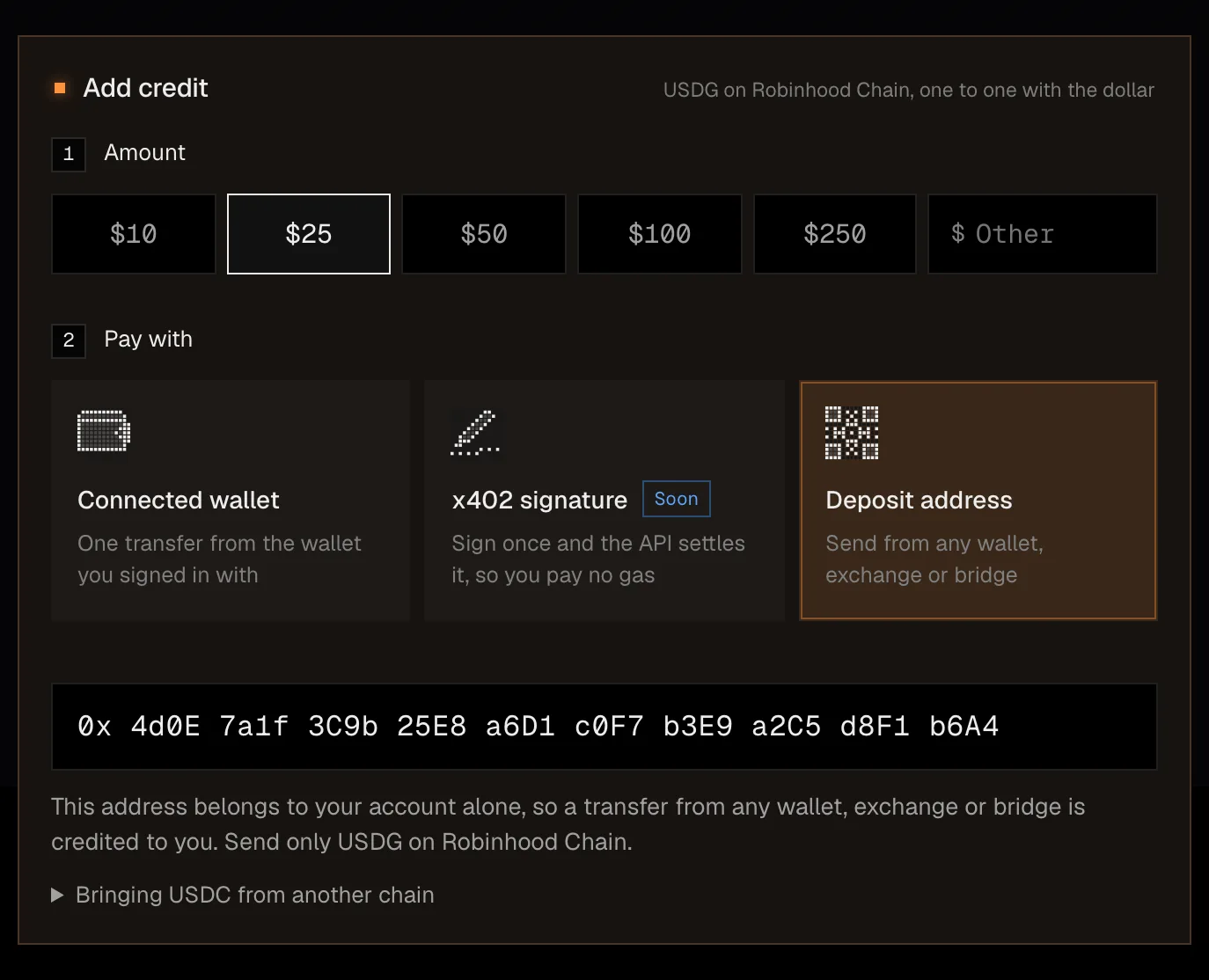
When the balance runs low. If a run costs more than your balance, a window shows what the run costs, the balance and what is missing, with Add credits.