Make images, video and music
Moth DocsTutorials
Make pictures, clips and songs in the three studios or from the chat box, and find everything again in the Library.
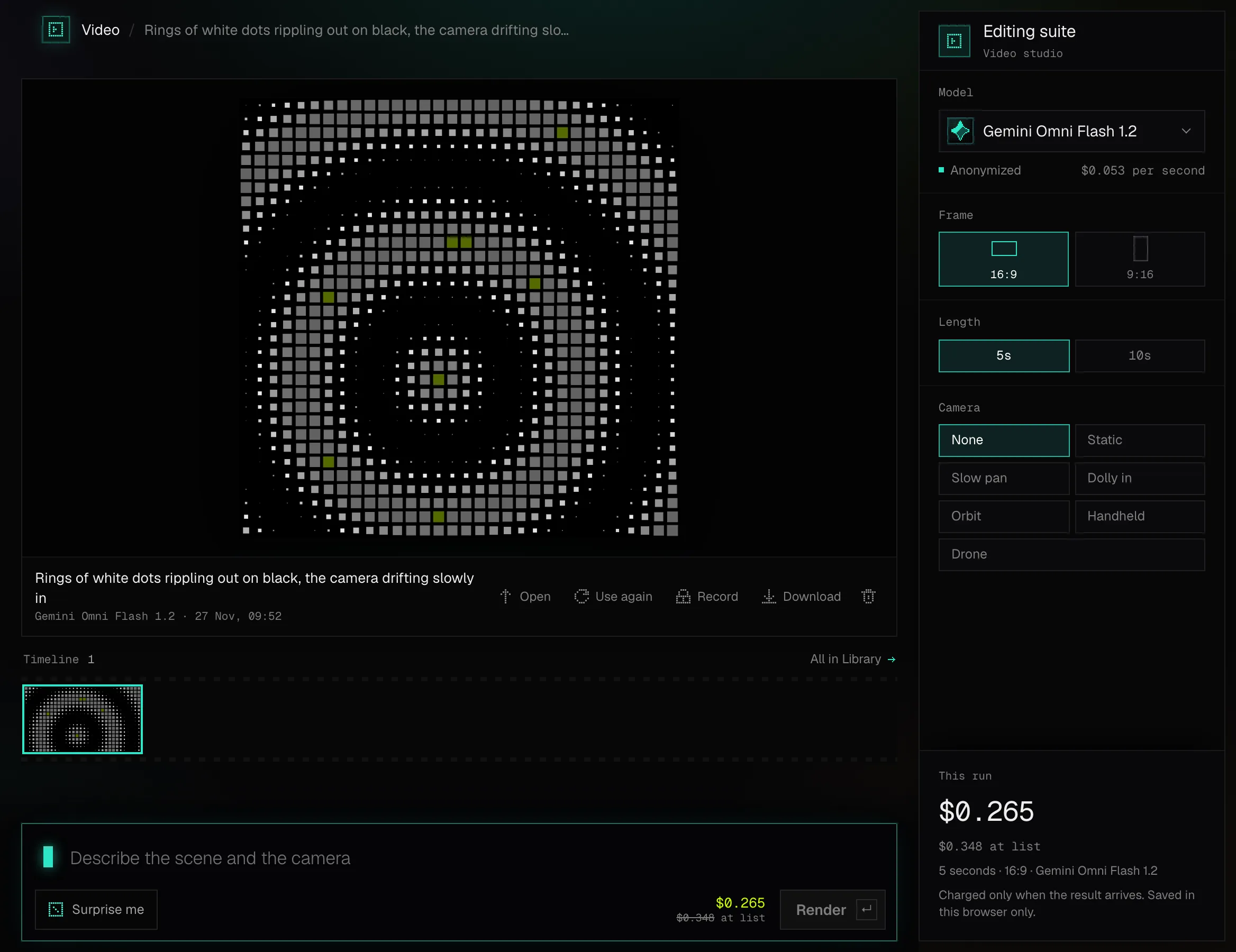
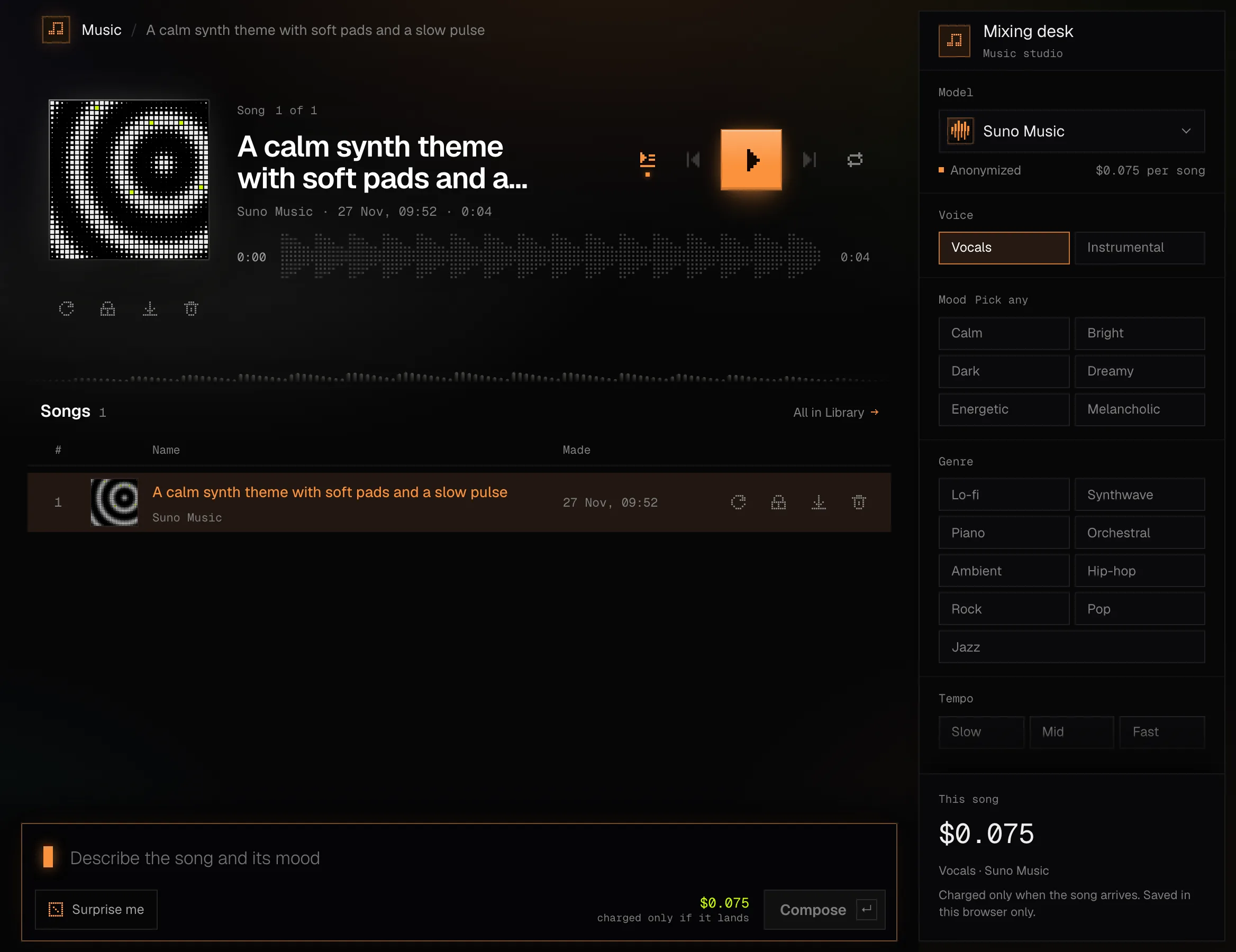
The row under New chat switches between Chat and the three studios. Each studio is a page for one kind, with the model and its settings at the side and the price of the run before you make it. A run is charged only when the result arrives.
Make an image
Open Image
Press Image in the row under New chat.
Set it up
At the side, pick the model, the frame, the number of images and a look such as Photo or Line art.
Describe it
Type a prompt into the box, start from one of the ideas, or press Surprise me.
Make it
Press Make. The image appears on the stage and in the strip below it, saved in this browser.
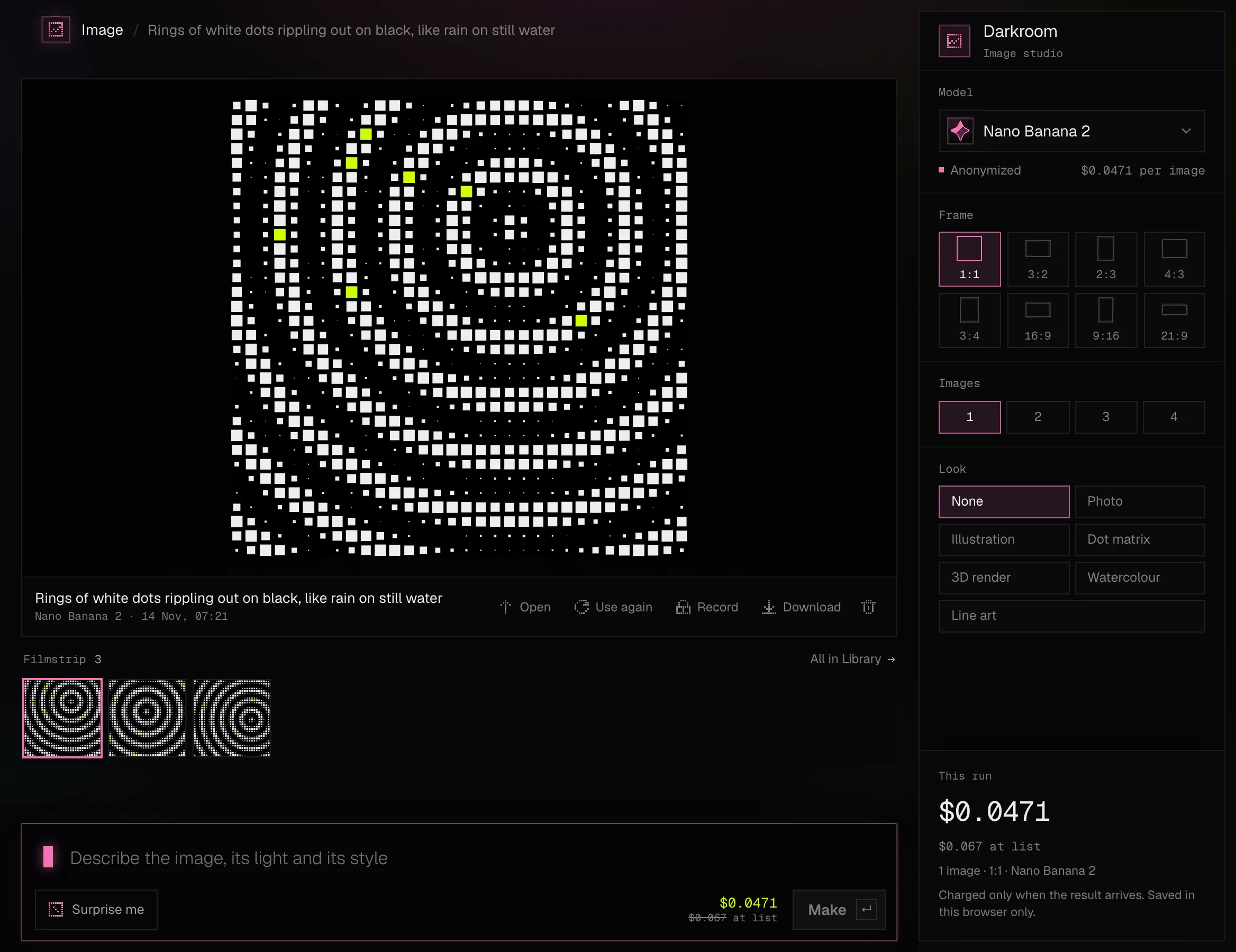
Under a result you can open it large, use its prompt again, read its privacy record, download it or delete it from this browser.
Make a clip
Open Video
Video needs a wallet.
Set it up
Pick the model, the frame, a length the model offers and a camera move such as Slow pan or Dolly in.
Render it
Describe the scene and the camera, then press Render. The clip plays on the stage and joins the Timeline under it.
Make a song
Open Music
Press Music in the row under New chat.
Set it up
Pick the model, Vocals or Instrumental, and any moods, a genre and a tempo.
Compose it
Describe the song and its mood, then press Compose. The song plays at the top and joins the list of songs below.
Make from the chat box
The tabs on the chat box make the same things inside a chat. Pick Image, Video or Music, write the prompt and send, and the result lands in the chat and in the Library.
The Library
Open it
Open the account menu at the foot of the panel and choose Library, or press All in Library in a studio.
Find an item
Filter by All, Images, Video or Music, or type into Find by prompt.
Use it
Open an item to see it large, download or delete it, read its privacy record, or send its prompt back to its studio.
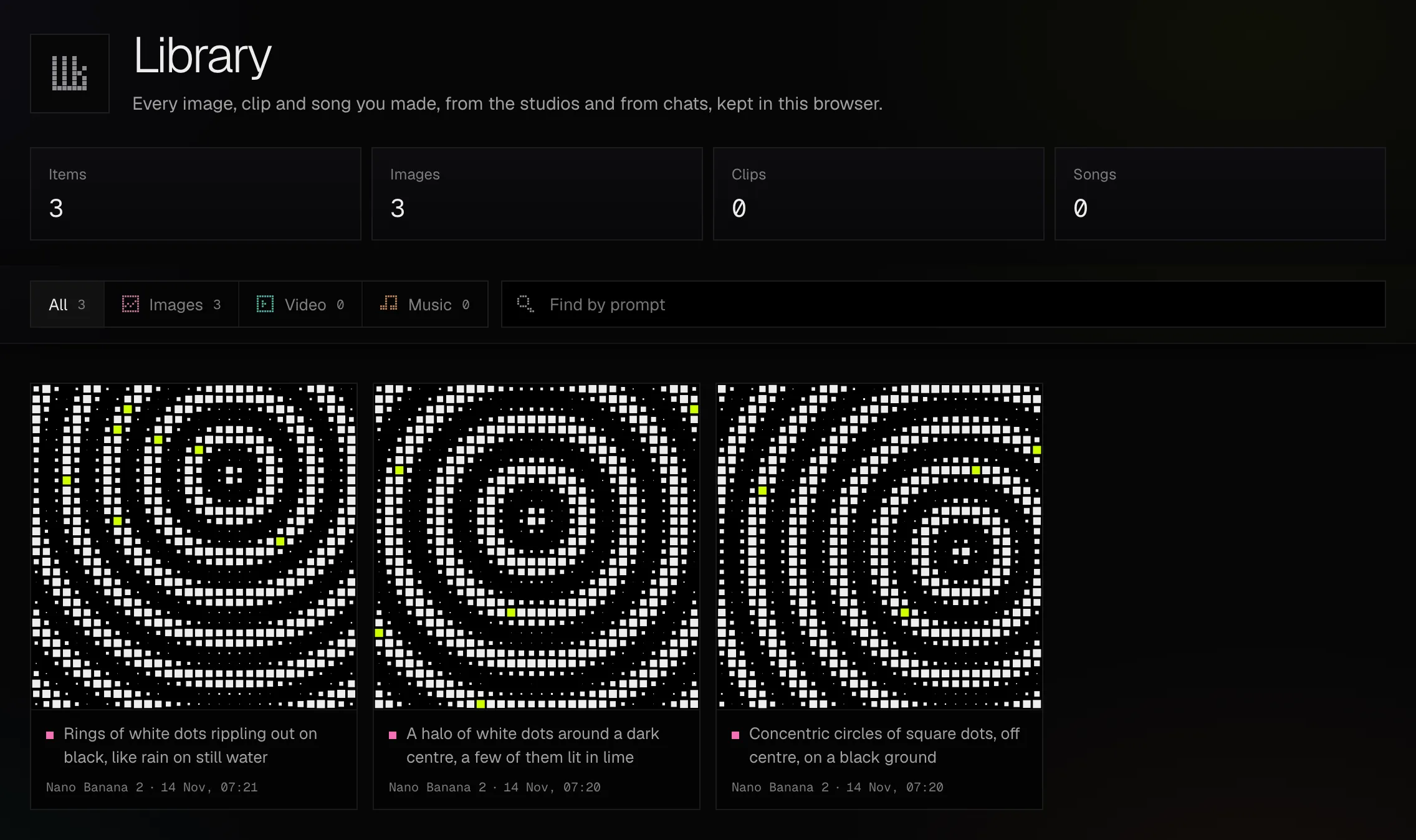
Kept in this browser. Images, clips and songs are stored in this browser only, and Backup doesn't copy them, so download what you want to keep.